

For years, your Google Business Profile lived in its own little world. Calls, direction requests, and website clicks sat in the GBP dashboard, your website analytics sat in GA4, and nobody made them talk to each other. That changed in 2026: GA4 now pulls Business Profile performance data in natively, no spreadsheets, no exports. UK analyst Kyle Rushton McGregor published a clean walkthrough of the setup, and it prompted this guide. Below is how to do it, plus the part most write-ups skip: what this connection genuinely cannot do.
What you are actually connecting
This is a native link, not a UTM trick. You are joining two Google products you already own so that your profile’s performance numbers appear inside Google Analytics. One GA4 property can connect to several Business Profiles at once, which sounds great for multi-location operators until you read the limitations further down.
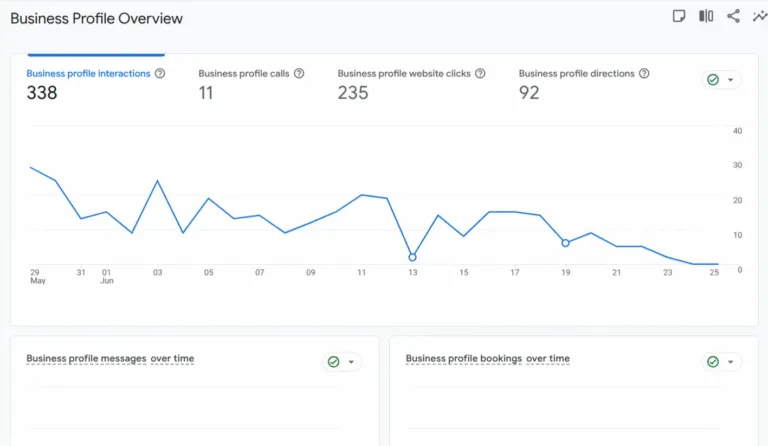
The data that flows across is the GBP performance set: interactions, website clicks, calls, directions, messages, bookings, and menu views. It is the same data Google already shows you in the profile dashboard, now sitting next to your web traffic so you can look at both in one place.
Before you start: permissions
Two access checks, or the link button will not work. One sits on the GA4 property, where you need Editor or Administrator access. The other sits on the Google Business Profile, where you need Owner or Manager status. You need both at once, and read access on either side will not do it:
- On the GA4 property, you need Editor or Administrator access.
- On the Google Business Profile, you need Owner or Manager status.
If an agency set up either one for you and you only have read access, sort that out first. This is the most common reason the steps below stall.
The setup, step by step
The whole link is made inside GA4, in seven steps. You open Admin, go to Product links, choose Google Business Profile links, press the blue Link button, pick the listings you want to connect, then confirm and submit. No tracking code is involved, and nothing changes on your website.
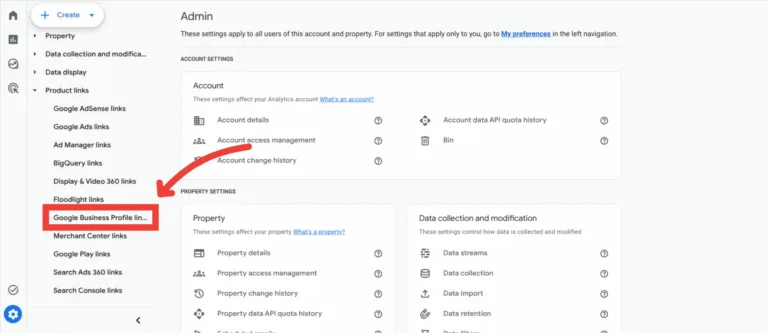
- In GA4, click the Admin gear icon in the bottom left.
- Open the Product links menu.
- Select Google Business Profile links.
- Click the blue Link button in the top right.
- Choose the specific Business Profile listings you want to connect.
- Click Confirm.
- Review your selection and click Submit.
That is the whole job. There is no tracking code to paste and nothing to add to your site.
Where the data shows up
Once linked, GA4 adds a dedicated Business Profile collection to your Standard reports. You will find it in the left navigation rather than mixed into your usual traffic reports.
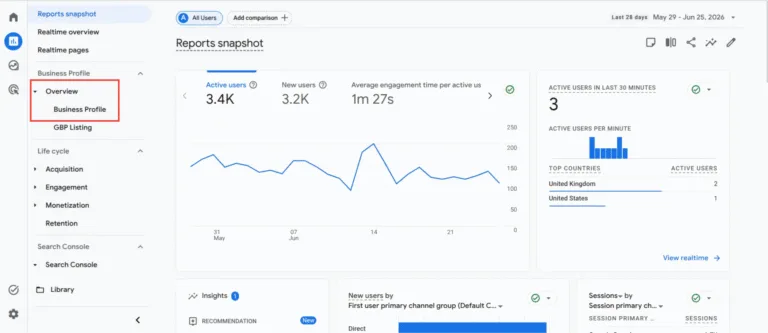
Inside it, the Business Profile Overview gives you the headline metrics on one screen: interactions, calls, website clicks, directions, and charts for messages and bookings over time.
What the data will not tell you
Here is the part to read before you get excited. The native connection is convenient, but Google has fenced it in hard, and for some businesses the fences make it close to useless.
- It is aggregated. Link three locations and GA4 shows you the sum, not a breakdown. There is no filter to see London on its own. For a single-location business this is fine. For a multi-location operator it removes the one thing you actually wanted.
- Six months, and that is all. GBP metrics live on a rolling six-month window inside GA4, while your normal web data can be kept for up to fourteen. No year-on-year comparison without exporting the numbers yourself.
- It is walled off from the good tools. This data sits in its own report collection and cannot be pulled into Explorations, comparisons, or custom filters. You can look at it, but you cannot really analyse it the way you analyse the rest of GA4.
- Updates lag. Change details on the profile and the reflection in GA4 is not instant.
If you run several locations and you genuinely need per-location numbers, the honest answer is to keep tagging your profile links with UTMs, because that traffic does land in your normal, fully filterable reports:
?utm_source=google&utm_medium=organic&utm_campaign=london-branchThat way the website clicks from each profile arrive in GA4 already labelled by branch, and you can slice them however you like, which is exactly what the native link will not let you do.
The part that matters if you are in the EU
One useful nuance for European businesses. These Business Profile metrics are Google’s own first-party data about your listing. They are not collected by the GA4 tag running on your website, so your cookie-consent banner does not gate them the way it gates your on-site web events. That does not put you outside GDPR: your overall use of GA4, and anything you do with personal data, still sits under it. But the specific calls-and-directions numbers from your profile are not riding on a visitor’s consent choice, which is a small but real clarity win when you are explaining your stack to a cautious client.
Is it worth doing?
Yes, with clear eyes. The setup takes two minutes and gives you a single place to glance at how your profile and your website are performing together, which is genuinely handy for a small business owner who does not want to log into five dashboards. Just do not retire the Business Profile dashboard because of it. The native report is a convenience layer, not a replacement, and for anything serious, per-location reporting, longer history, real analysis, you will still reach for UTMs and the full GBP interface.
If you would rather someone set this up properly and tell you which numbers actually deserve your attention, that is the everyday work of our Google My Business setup service. The connection is easy. Knowing what to ignore is the skill.
Sources
- Kyle Rushton McGregor, KRM Digital. “Link Google Business Profile to GA4: A Step-by-Step Guide,” 26 June 2026 (the guide that prompted this article; source of the screenshots). https://krmdigital.uk/blog/gbp-to-ga4/
- Google Analytics Help. “Connect Google Business Profile (GBP) to Google Analytics” (official setup + metric list + limitations). https://support.google.com/analytics/answer/16930347