


Verification is Google’s check that you are entitled to manage a business. Google decides which methods your profile can use, shows them under “Get verified”, and sometimes asks for more than one. You cannot demand a different method. Once you complete the steps, review can take up to five business days.
Two things have to be in place before any method appears: an eligible business and the correct profile. A listing that is already visible on Maps can still need to be claimed and verified, and verification is the step that turns a listing you can see into one you can manage.
This guide covers what Google checks, which methods exist, what a verification video has to show, how long delivery and review take, and what to do when the result is not the one you wanted. If the profile does not exist yet, start with our step-by-step creation guide. If someone else already owns it, read how to claim an existing business on Google Maps first.
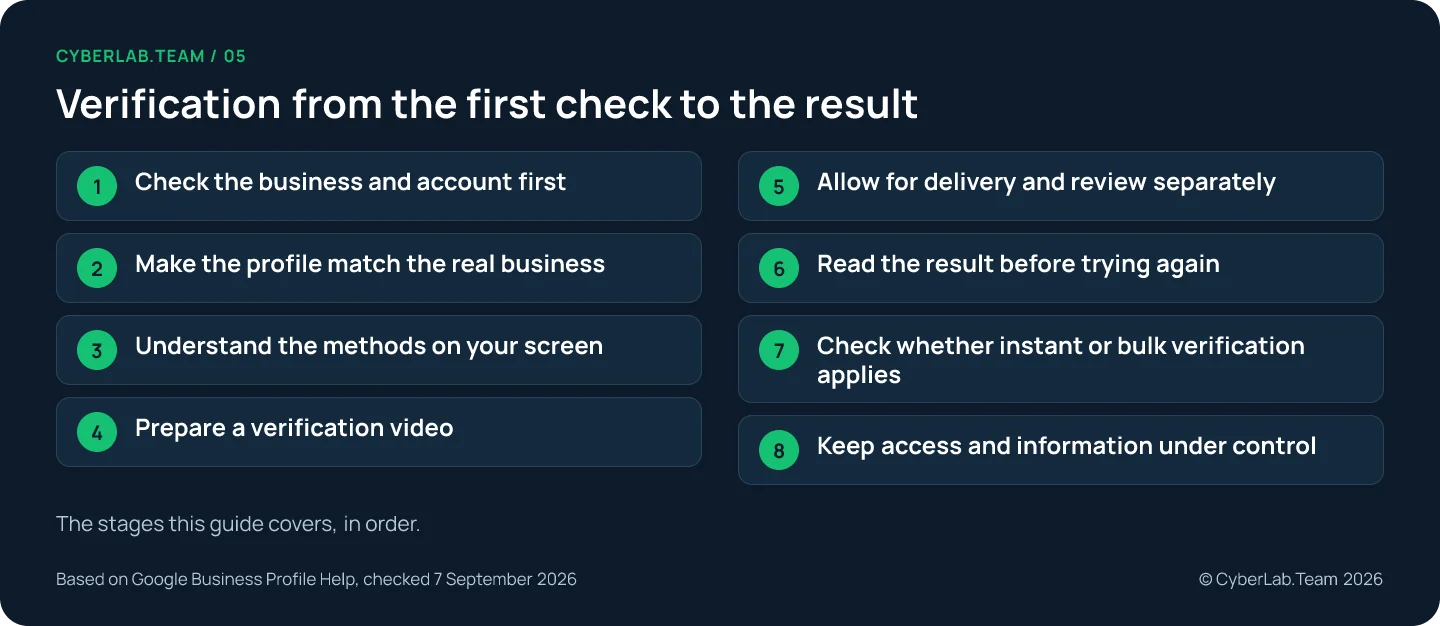
Check the business and account first
Verification works only from the right starting point: the Google Account connected to the business, a profile nobody else already owns, and a business that meets Google’s eligibility rules. Someone else’s verified profile calls for an access request and a lost login calls for account recovery; both are covered in how to claim an existing business. An online-only business does not qualify at all, and the eligibility rules, including coworking offices and rented addresses, are in Step 1 of the creation guide.
Sign in to the Google Account associated with the business. Search for the business name and city, or open the Business section in Maps, and confirm the location before you start: a nearby branch can have a similar name.
Only the owner or an authorized representative should verify. If an agency helps, agree who will handle the process and keep the business owner involved. Under Google’s third-party policies the client keeps ownership or co-ownership of the profile.
Make the profile match the real business
Google verifies the business as the profile describes it, so check the name, category and address before you submit evidence, and keep them accurate rather than changing them in the hope of an easier method. Steps 4 and 5 of the creation guide cover how to enter them. Two points belong here because they decide whether the evidence fits.
A verification attempt should concern the location you actually operate from. Hiding a home address from the public does not remove the need to show where the business operates during video verification, so prepare the evidence that fits your business model without presenting a private home as a customer-facing shop. A service-area business that visits customers should hide its address from public view, and a hybrid business should set the address display to match how it serves customers.
A virtual office or rented mailing address alone is insufficient. A coworking location has additional requirements: permanent signage, your own staff and receiving customers during business hours. Renting an address does not settle eligibility.
Understand the methods on your screen
Google’s standard verification methods are a video recording, a phone call or text message, an email, a live video call and a code sent by mail. Which of them your profile sees depends on business type, region and public information, so treat the options on your own screen as the only ones that exist for you.
The available options depend on factors such as business type, region and public information. Another business’s verification experience does not establish which options you will receive.
| Method | What it involves when offered |
|---|---|
| Video recording | Capture evidence through the profile on a mobile device. |
| Phone or text | Receive a code using the business number. An automated phone menu cannot receive the verification code. |
| Access the email address displayed in the verification workflow. | |
| Live video call | Show the business to a representative during the location's business hours. |
| Receive a code at the business address, then enter it in the profile. |
Before you start, check that you can receive the message at the contact shown, charge the phone and arrange access to the relevant parts of the business. Have the responsible person available, especially if premises or equipment need a key. This is our practical advice, not a Google requirement.
Write down which profile and which method you are working on. For a business with several branches, a simple internal note helps staff avoid confusing a verification request with an unrelated edit or a different location.
Prepare a verification video
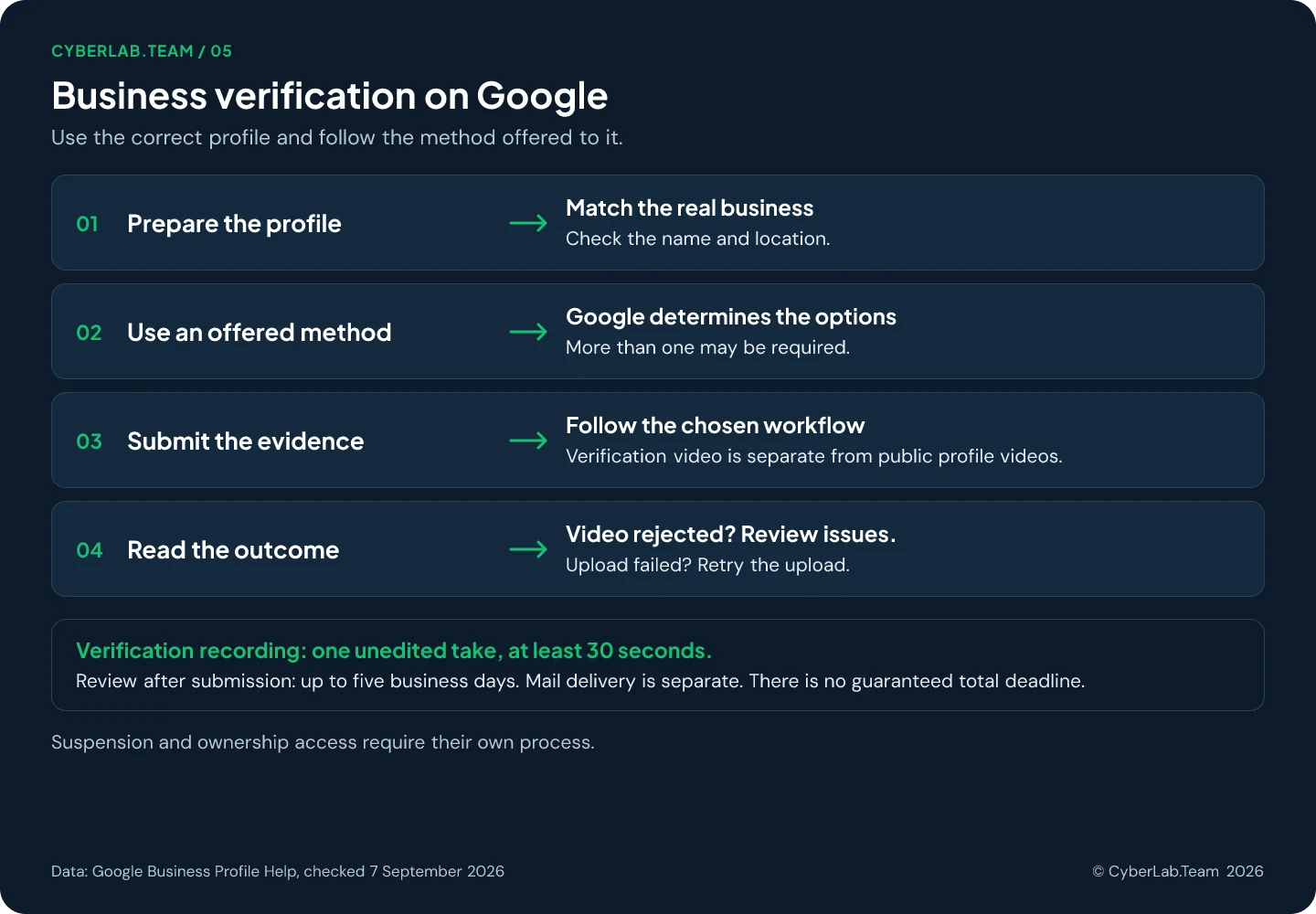
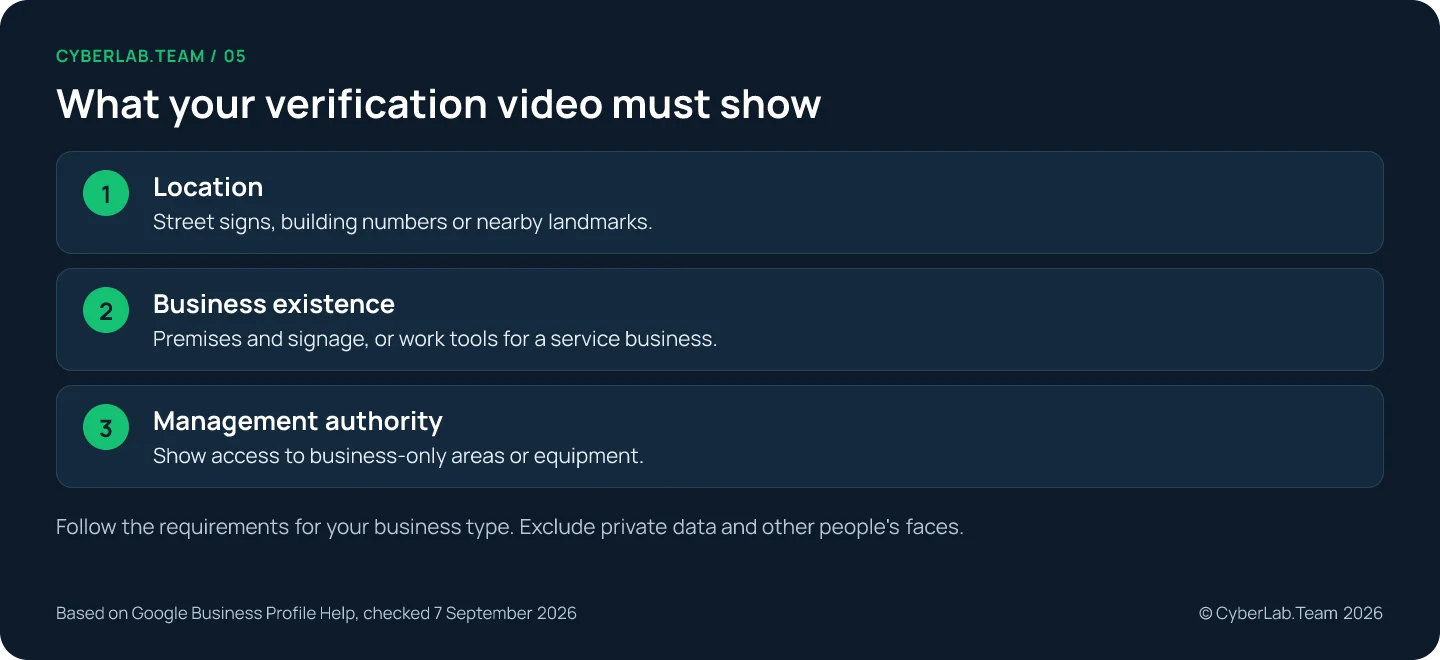
A verification video is recorded through the profile on a mobile device in one continuous, unedited take of at least 30 seconds. It has to show where the business operates, that the business exists and that you have the authority to manage it. A clip filmed earlier and uploaded later is not accepted.
For a storefront, show nearby location details, permanent signage that matches the profile name, and your authority to manage the business, for example by opening an employee-only area.
For a service business, show location evidence, tools or other evidence of the business, and management access. Hiding the address publicly does not exempt the recording from the location requirement.
Keep faces, sensitive identity numbers and private financial information out of the frame. Plan what will appear before you record, and move private paperwork out of view; there is no editing afterward.
A rehearsal is worth a few minutes. Walk the route once without recording, decide where the location evidence, the business activity and the management access will appear, and make sure you can demonstrate access yourself without waiting for someone who is absent. The rehearsal is our own precaution; Google does not ask for it. Over the past twelve months we ran somewhere between 10 and 30 video verifications for clients (we did not keep an exact count), and Google rejected a few. The usual reason was the recording itself: a take that was cut short or stitched together from pieces. A rehearsal is how we try to get it right in one take. It is no substitute for the recording made through the profile; follow the requirements displayed for your business when you begin.
Do not confuse this with adding a public video through Photos. Google’s public media guidance sets a video maximum of 30 seconds; the verification recording guidance sets a minimum of 30 seconds. They describe different workflows.
Allow for delivery and review separately
Two clocks run after you submit, and they are not the same clock. Review of completed verification steps can take up to five business days. If Google offers mail, most codes arrive within 14 days and expire after 30 days. Nothing in Google’s guidance adds these up into a guaranteed date by which the profile will be verified.
While you wait for a mailed code, do not change the business name, address or category, and do not request another code. Any of those actions can invalidate the code that is already on its way.
Keep verification codes private, including from people who help manage the profile. Google does not charge for verification. An agency may charge separately for its own work, but that payment does not buy approval from Google.
For your own records, note the submission date, the location and the current status message, and keep any confirmation email. When you check progress, compare the same profile and the same stage: a pending address edit is a different item from a pending verification.
Read the result before trying again
A rejected video, a failed upload, a reappearing “Get verified” prompt and a suspended profile are four different outcomes, and each has its own next step. Read the status Google shows before you act, because the fix for one of them, such as recording again, does nothing for the others.
If a video is rejected, open “Review issues” and address the reasons listed. A replacement recording has to carry all the required evidence again, including what was accepted the first time, so list what the feedback says is missing and plan how each item will appear in the new take; fixing one thing and losing another sends you round again. If the upload itself failed, retry the upload; that is a technical problem, not a verdict.
If “Get verified” reappears, Google may not have fully verified the business. Follow the current prompt. Changes to business details can also trigger reverification; Google’s category guidance explicitly warns that category edits may require it.
Business Profile Manager separates states such as pending verification, access needed and suspended. Identify what is pending and read the instructions attached to that status before choosing an action.
A suspension or content restriction needs its own policy and appeal route. A rejected video does not automatically mean the profile is suspended. Do not create another profile while an appeal is under review.
If verification stays unresolved, use the help route in Google’s verification guidance. Prepare the profile link, the submission date, the method, the exact error and the steps you have already tried, so the issue is easy to describe. Share only what is requested through the appropriate support channel, keep passwords and verification codes out of the summary, and do not publish private evidence in a public forum post.
Creating another listing for the same business does not fix an inaccessible or unverified profile. Check for the existing listing first, and if it belongs to someone else, request access rather than starting over.
Check whether instant or bulk verification applies
This section is for chains and multi-location brands. A business with a single location can skip to the next section.
Two special routes exist, and both are conditional. Instant verification may be available to some businesses, including cases connected with a website verified in Search Console, but website ownership does not guarantee it. Bulk verification covers a single business with at least 10 eligible profiles, and Google may still ask for evidence at individual locations.
Google says some businesses may qualify for instant verification, and one of the documented cases is a website already verified in Search Console. The word is “may”: owning the website does not guarantee the instant route for the profile.
Search Console verification establishes control of a website property. It is a separate product with its own ownership methods and permissions. Ask the person responsible for the website to check its status if this route becomes relevant.
Bulk verification is intended for 10 or more eligible profiles of the same business. An agency cannot combine unrelated clients to reach that threshold, and service-only businesses use individual verification rather than the bulk route.
For a qualifying chain, prepare accurate location data and review the errors before anything else. A spreadsheet upload is not the verification request: Google runs a separate bulk request process and can still require evidence from individual locations.
Use the current spreadsheet template and preserve the correct business codes for existing locations. Review the import preview for unexpected new profiles or errors before accepting it. A clean import does not establish verified status.
For planning, assign one person to maintain the location list and one person at each site who can demonstrate the business if asked. Keep their responsibilities clear, and do not promise a launch date on the assumption that every location will pass together.
Keep access and information under control
Verification proves who manages the profile today; it does not lock the profile down afterward.
Use separate Google Accounts for each person who needs access, and review unfamiliar access requests before accepting them. The roles, the primary owner and the seven-day restriction are explained in the claim guide’s section on checking ownership after access. Some calls from Google about business information are legitimate, so the existence of a call proves little either way. Check any payment demand or promise of special ranking independently.
Verification does not mean every later edit is approved. Edits can be accepted, pending or not approved, and Google may update information from other sources. Keep checking the name, hours, contact details and address configuration.
The ability to edit a field is not a dependable verification test either. Some unverified profiles permit certain edits, while others require verification first. Trust the profile’s verification state and its prompts rather than one successful change.
Verification helps establish authenticity, but it does not guarantee a position in local results. Google does not accept payment for a better local ranking, so treat any promised position or guaranteed verification outcome as a claim that needs evidence.
If a rejection keeps repeating, the Google Business Profile service includes help with verification. Send the profile link, the method Google offers, the date you submitted and the exact message you see. For what comes after verification, see the complete setup and management guide.
Sources
Google Help pages on the methods, video rules and timelines above, checked 7 September 2026.
- Verify your business on Google: https://support.google.com/business/answer/7107242
- Verify your business with a video recording: https://support.google.com/business/answer/14271705
- Bulk verification: https://support.google.com/business/answer/4490296
- Understand delays in bulk verification: https://support.google.com/business/answer/3217747
- Create a spreadsheet for bulk upload: https://support.google.com/business/answer/3370250
- Import a spreadsheet of Business Profiles: https://support.google.com/business/answer/4542428
- Add a website property to Search Console: https://support.google.com/webmasters/answer/34592
- Verify site ownership in Search Console: https://support.google.com/webmasters/answer/9008080
- Business eligibility and ownership guidelines: https://support.google.com/business/answer/13763036
- Guidelines for representing your business on Google: https://support.google.com/business/answer/3038177
- Manage service areas: https://support.google.com/business/answer/9157481
- Add or edit your business address: https://support.google.com/business/answer/2853879
- Manage your business category: https://support.google.com/business/answer/7249669
- Find your business on Google: https://support.google.com/business/answer/145585
- Business Profile third-party policies: https://support.google.com/business/answer/7353941
- Manage photos or videos for your Business Profile: https://support.google.com/business/answer/6103862
- Check the status of your Business Profiles: https://support.google.com/business/answer/3480862
- Check your Business Profile edit status: https://support.google.com/business/answer/3038311
- Manage Google updates to your Business Profile: https://support.google.com/business/answer/3480441
- Appeal Business Profile content and profile restrictions: https://support.google.com/business/answer/13597551
- Fix suspended or disabled profiles: https://support.google.com/business/answer/4569145
- About calls from Google: https://support.google.com/business/answer/6212928
- Manage profile owners and managers: https://support.google.com/business/answer/3403100
- Protect your Business Profile: https://support.google.com/business/answer/14509283
- Tips to improve your local ranking: https://support.google.com/business/answer/7091