

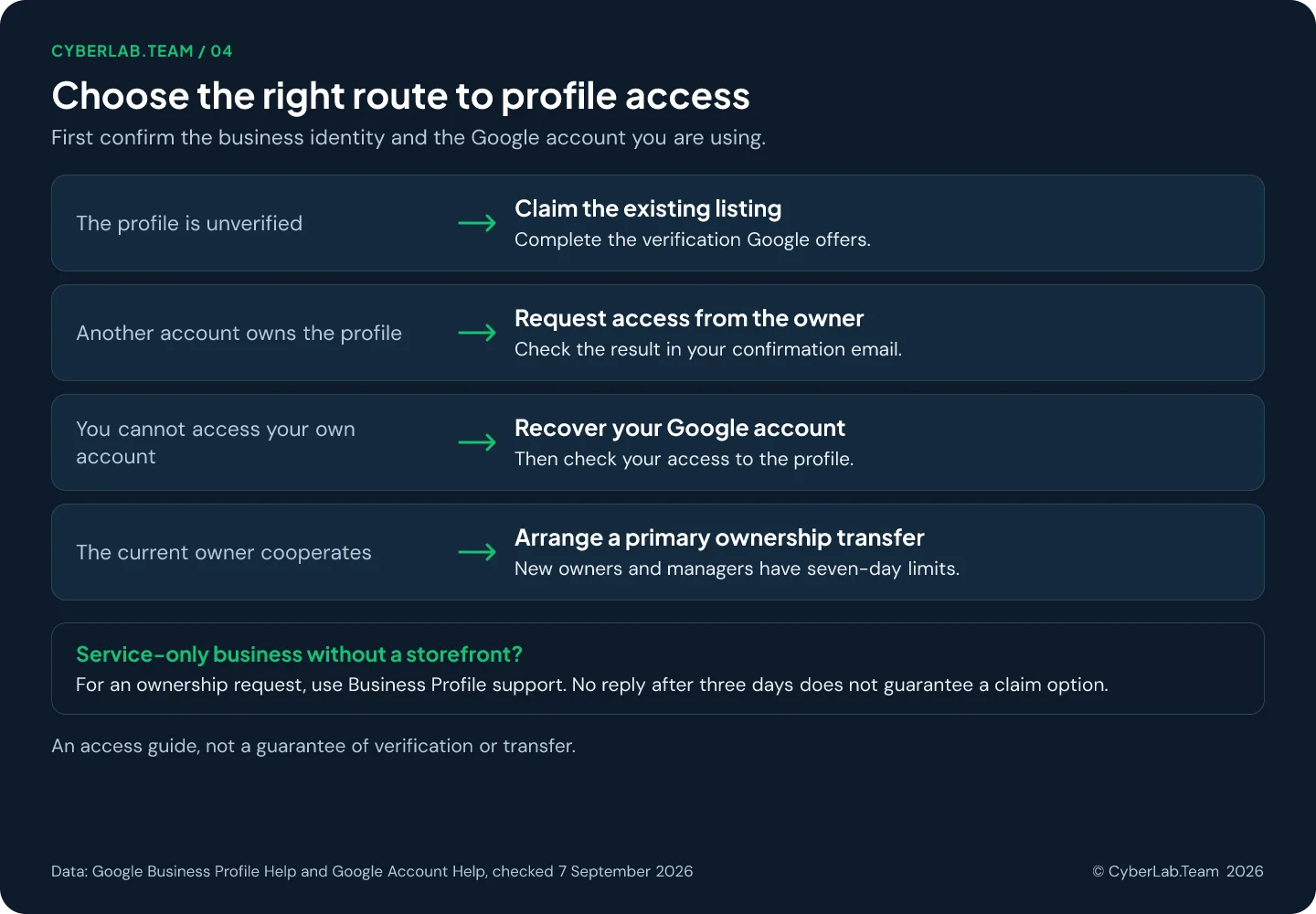
A business showing up on Google Maps tells you nothing about who can manage its profile. Work out which of three situations you are in. The listing is unverified, so you claim it and verify. Another account already owns it, so you request access from that owner. Or the profile is yours and the account is the problem, so you start with account recovery.
If the listing exists and you simply cannot edit it, resist creating a fresh one: this guide is about getting into the profile that is already there. A listing can slip out of reach in more than one way. A former agency may have opened it under its own account, an ex-employee may have set it up with a personal Gmail, or a previous tenant’s profile may still sit at your address. Each of those leads to a different route below. For a business with no listing at all, start with our step-by-step creation guide.
In our own client work two cases come up most often: the profile sits on a former employee’s personal Gmail, or Google or its users created the listing and nobody ever claimed it. With a former employee, an ownership request has usually taken one to two weeks from sending it to getting access. We have also had a request that went nowhere, and Google support resolved it.
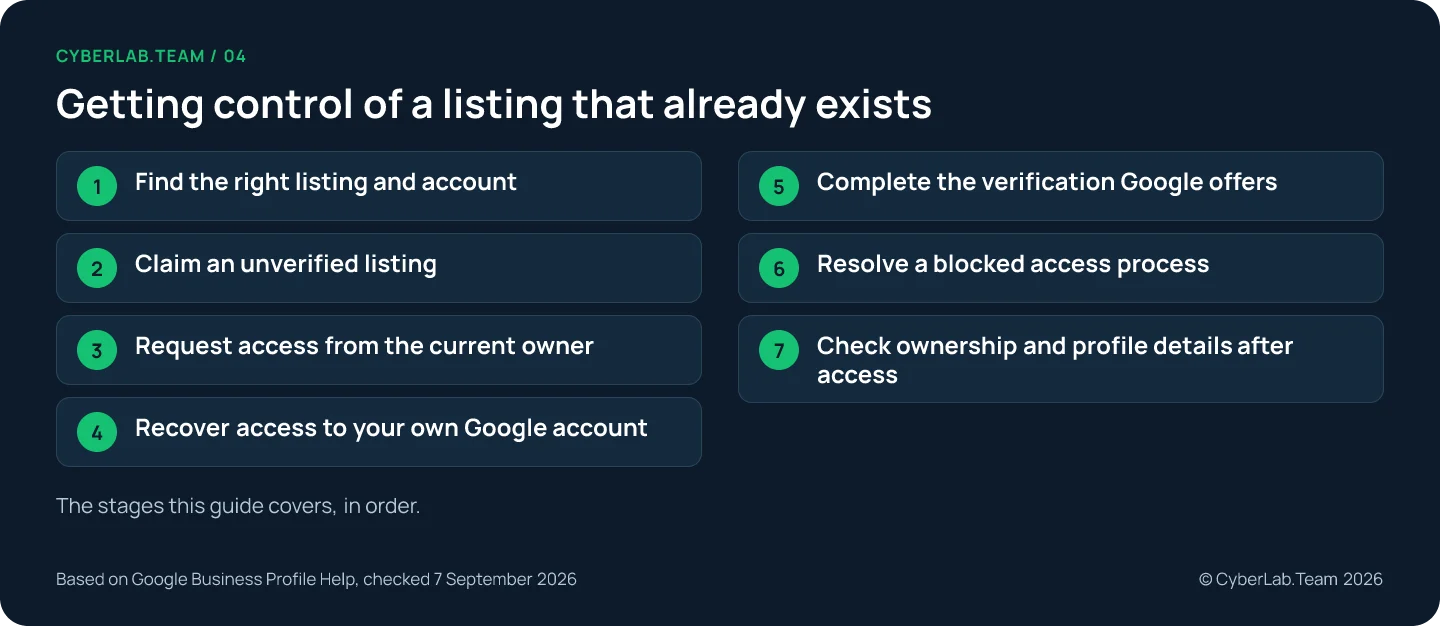
Find the right listing and account
Before you claim anything, confirm that the listing is really your business and that you are signed in with the right Google account. A similar name or a shared address can look like yours, and a missing claim button often means you already have access under another account.
Search Google Maps for your business name and city and compare the location, website and visible business details with your own records. This matters most when several businesses have similar names. Google builds listings from business owners, public websites, licensed sources and user contributions, so a listing can exist that nobody on your team created. That alone does not show who owns it. A different company that previously occupied your premises is a separate business, even if the street address matches.
Only the owner or an authorized representative may verify and manage a profile, and the business has to meet Google’s eligibility rules. An ordinary online-only business is not eligible for a local Business Profile.
Then check your signed-in Google account. Search for your business or for “my business” while using an account previously connected to the profile. In the Maps app, the Business tab lists the profiles you manage. If the claim button is absent, you may already have access. If it is present, the next screen may tell you that someone else manages the profile. Read that screen before choosing a route.
Claim an unverified listing
An unverified listing is the simplest case: nobody has proven ownership yet, so Google lets you claim it directly from the map and then verify. The sequence differs slightly between desktop and the mobile app, and the moment the screen mentions another manager, you have left this route and need the ownership request instead.
On desktop, use this sequence:
- Open Google Maps and select the correct business.
- Choose “Claim this business”, then “Manage now”.
- Follow one of the verification options offered for that profile.
In the Maps mobile app, open the business, select About, then “Claim this business” and “Manage now”. Continue with the available verification steps.
If the next screen says someone else manages the profile, use the ownership-request route below. If you selected the wrong business, go back and choose the correct one before continuing.
Creating a new listing is appropriate only when your eligible business does not already have one. An inaccessible existing profile needs its access issue resolved, not a replacement created for the same business.
Request access from the current owner
When another account already owns the verified profile, you file a formal request through the add-business page, the current owner gets three days to answer, and the outcome arrives by email. Silence is not consent, and the fallback claim option that sometimes appears after three days is not guaranteed.
For a storefront or hybrid business, go to business.google.com/add. Enter the business name and address, then select the existing listing. When Google identifies another manager, choose “Request Access”, complete the form and submit it.
Keep Google’s confirmation email. Use it to check the request and continue the process. The current profile owner receives a notification and has three days to respond.
| Outcome | What to do next |
|---|---|
| Approved | Check the approval email and open the profile to manage it. |
| Denied | You can try to appeal the denial. Follow the available instructions or ask Business Profile support about the access issue. |
| No response after three days | Open the confirmation email and look for "View request", then "Verify". This option is not always available. |
If the claim option is missing, contact support about the existing profile. Keep the original request details available so you can explain where the process stopped.
If you visit customers without a storefront
For ownership of an existing service-area profile without a physical shop or office, Google directs you to Business Profile support. Enter “Transfer ownership of listing” in the help field and select that issue description.
A service-area business does not receive customers at its business address, and its address should be hidden from customers. A hybrid business also serves customers at its own location and follows the storefront ownership-request route.
Recover access to your own Google account
Sometimes the profile is fine and the problem is the account it belongs to: a forgotten password, a lost username or a phone that no longer receives codes. That is a Google account recovery job, not a Business Profile one.
Use Google’s account recovery process. It handles forgotten passwords, forgotten usernames and problems receiving sign-in verification codes. If you have forgotten the email address, recovery requires a phone number or recovery email associated with the account, plus the full name on it. Follow Google’s questions to identify the account and regain access.
For a company-managed account, contact the Google Workspace administrator if the standard recovery steps do not work. Recovery instructions for a personal account do not cover every organization-managed account.
Recover only an account that belongs to you. If a former employee used a personal account, request access to the Business Profile or arrange a transfer with that person. Owning the business does not give you access to their private account.
Once you can sign in, check the profile again. Save current recovery information while you still have account access; you cannot add it during a lockout or while account recovery is in progress.
Complete the verification Google offers
Whichever route got you here, Google decides how the profile is verified and may ask for more than one method, so follow the options your own profile shows. The methods, the video evidence, the timelines and what to do after a rejection are in the verification guide. One point belongs here: the current owner’s three-day response period and Google’s verification review are separate clocks, and neither gives a guaranteed total time to gain access.
Resolve a blocked access process
When every route stalls, the way forward is a precise support request, not a workaround. If no verification option works, follow the help route in the profile or Business Profile Help. Send the listing URL, the request confirmation and the exact error message, say whether you are claiming an unverified listing, disputing another owner’s access or recovering your own account, and list what you have already tried. Duplicates, suspensions and agency lock-ins each have their own process; deleting content fixes none of them.
If you find duplicates, confirm that they represent the same business; distinct eligible businesses can share an address. Google reviews merge requests. Merging genuine duplicates can combine reviews, but review replies may be lost.
Do not remove profile content and managers as a way to reset access. That action can permanently remove owner posts, photos and review replies, while customer reviews remain. It also does not guarantee that the listing disappears from Maps.
A suspension or account restriction is a separate problem. Follow the relevant reinstatement process and do not create another profile for the same business while its appeal is under review.
If an agency retains control, Google’s third-party policies require the client to retain ownership or co-ownership, and there is a policy complaint route. A complaint and an ownership request serve different purposes, and neither promises an outcome.
Check ownership and profile details after access
Getting in is half the job. Once you can open the profile, look at who holds the primary owner role and who else has access, arrange a proper transfer if you bought the business, and tighten the account.
Open Business Profile settings, then People and access. Check which account is the primary owner and which people have owner or manager roles. A manager can handle many daily tasks but cannot add or remove users.
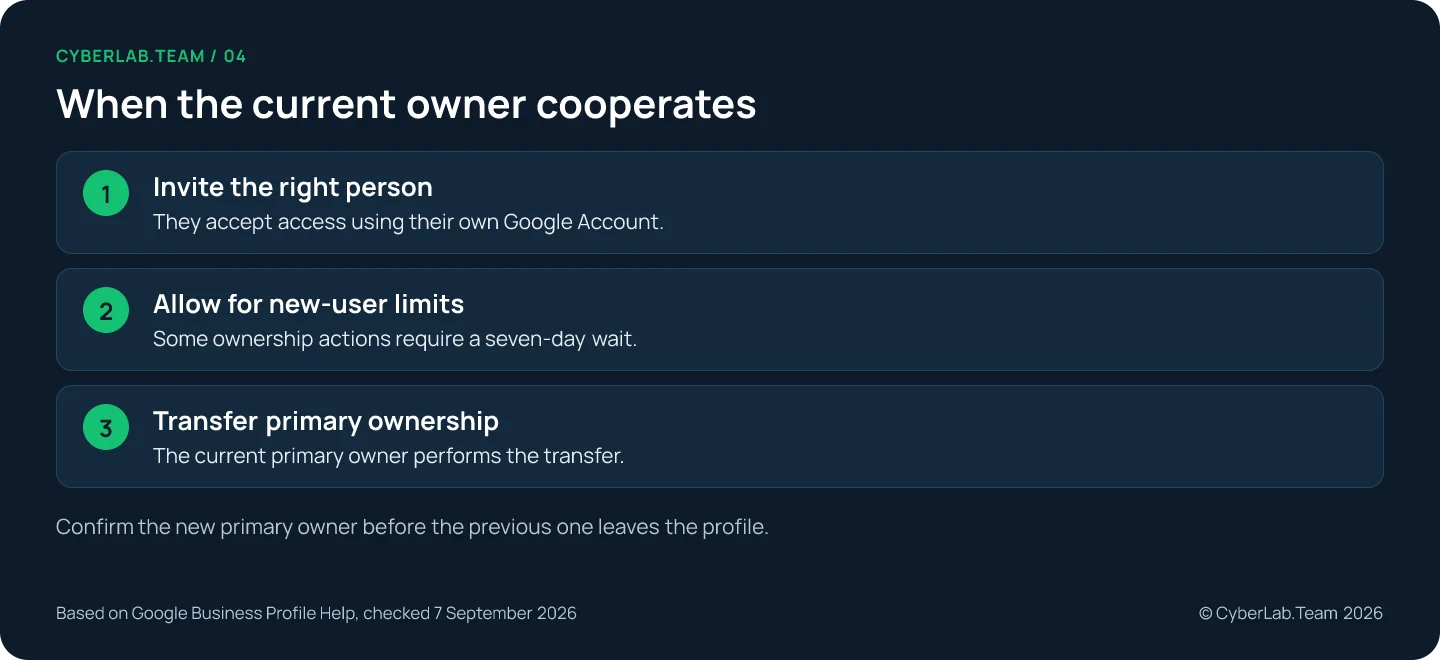
If you bought the same operating business and the current owner cooperates, arrange a transfer of primary ownership. The current primary owner must make that transfer to another user on the profile; accepting manager access alone is not the handover.
New owners and managers face a seven-day restriction on certain actions, including removing other users and transferring primary ownership. Plan the handover around this restriction; it does not mean all profile work stops for seven days.
Limit access to people who need it. Use separate accounts, remove former staff when permitted, and review unexpected access requests. Turn on two-step verification and keep account recovery details current.
After a change of management, compare the public name, address setting and hours with what you expect, and check the status of each saved correction: it may be accepted, pending or not approved. Google can also update details from other sources, so claiming a profile does not fix its public information for good. The field-by-field checklist covers the full pass, and the routine that follows is in the complete setup and management guide.
Reviews, previous tenants and wrong details
Will the business keep its reviews?
Google says reviews remain when a business has a new owner or manager and keeps the same name. A new owner does not get a fresh review history. Separate moderation, duplicate-merging or significant business changes can affect reviews.
Can I take over the previous tenant’s listing?
If you are opening a different business at the address, do not repurpose the previous tenant’s profile. Google distinguishes a new business from an ownership transfer or an eligible rebrand. Follow the rules for that business identity.
Can I correct information before I have access?
You can suggest a factual correction through Google Maps. Google reviews those suggestions, so submission does not guarantee approval. Suggesting an edit also does not give you ownership or management access.
If the request has stalled, the Google Business Profile service covers profile access. Send the public listing link, the date of your request and the exact message Google showed, through the contact page.
Sources
Google Help pages behind the routes above, checked 7 September 2026.
- Add or claim your Business Profile: https://support.google.com/business/answer/2911778
- Request ownership of a Business Profile: https://support.google.com/business/answer/4566671
- Resolve duplicate profiles and ownership issues: https://support.google.com/business/answer/12756178
- Verify your business on Google: https://support.google.com/business/answer/7107242
- Business eligibility and ownership guidelines: https://support.google.com/business/answer/13763036
- Find your business on Google: https://support.google.com/business/answer/145585
- Manage your Business Profile owners and managers: https://support.google.com/business/answer/3403100
- Transfer primary ownership of a Business Profile: https://support.google.com/business/answer/3415281
- Manage your service areas for service-area and hybrid businesses: https://support.google.com/business/answer/9157481
- Guidelines for representing your business on Google: https://support.google.com/business/answer/3038177
- Business Profile third-party policies: https://support.google.com/business/answer/7353941
- Tips for working with third parties to manage your Business Profile: https://support.google.com/business/answer/7163406
- Help protect your Google Business Profile: https://support.google.com/business/answer/14509283
- Understand how Google sources and uses info in Business Profiles and local search results: https://support.google.com/business/answer/2721884
- Understand what happens to your Business Profile edits: https://support.google.com/business/answer/3038311
- Understand Google updates on your Business Profile: https://support.google.com/business/answer/3480441
- Remove a Business Profile from your Google Account: https://support.google.com/business/answer/4669092
- Fix suspended or disabled profiles: https://support.google.com/business/answer/4569145
- Overview of Google Business Profile policies: https://support.google.com/business/answer/13762416
- Move your reviews across Business Profiles: https://support.google.com/business/answer/3098204
- Edit place information in Google Maps: https://support.google.com/maps/answer/7084895
- How to recover your Google Account or Gmail: https://support.google.com/accounts/answer/7682439
- Turn on 2-Step Verification: https://support.google.com/accounts/answer/185839
- Set up recovery options: https://support.google.com/accounts/answer/183723