


A Google Business Profile is rarely finished. Hours change, a supplier leaves, a review waits for a reply, and Google itself edits details from other sources. This article is about what happens once the profile exists: who holds access, what gets checked and when, what counts as published, and the record that lets someone else take the profile over.
It is also the entry point to the rest of the series. Getting a profile running has several stages, and each has its own article; the next section says which.
Before you open a single form, put together a short working record: the name on your sign, the hours during which customers can actually be served, the address or the area you travel to, the website, a phone number and the name of the person responsible for access. Check every field against that record as you go. Anything uncertain gets flagged for the owner to confirm, not guessed. The same record grows into the handover record at the end of this article.
Where each stage is explained
Getting a profile running has six stages, and one article owns each: whether the business qualifies and how to create the profile, finding or claiming an existing listing, verification, the fields, reviews, and ranking and measurement. This article owns what comes after: access, routine, publication status and handover. The summaries below only point to the article that goes deep.
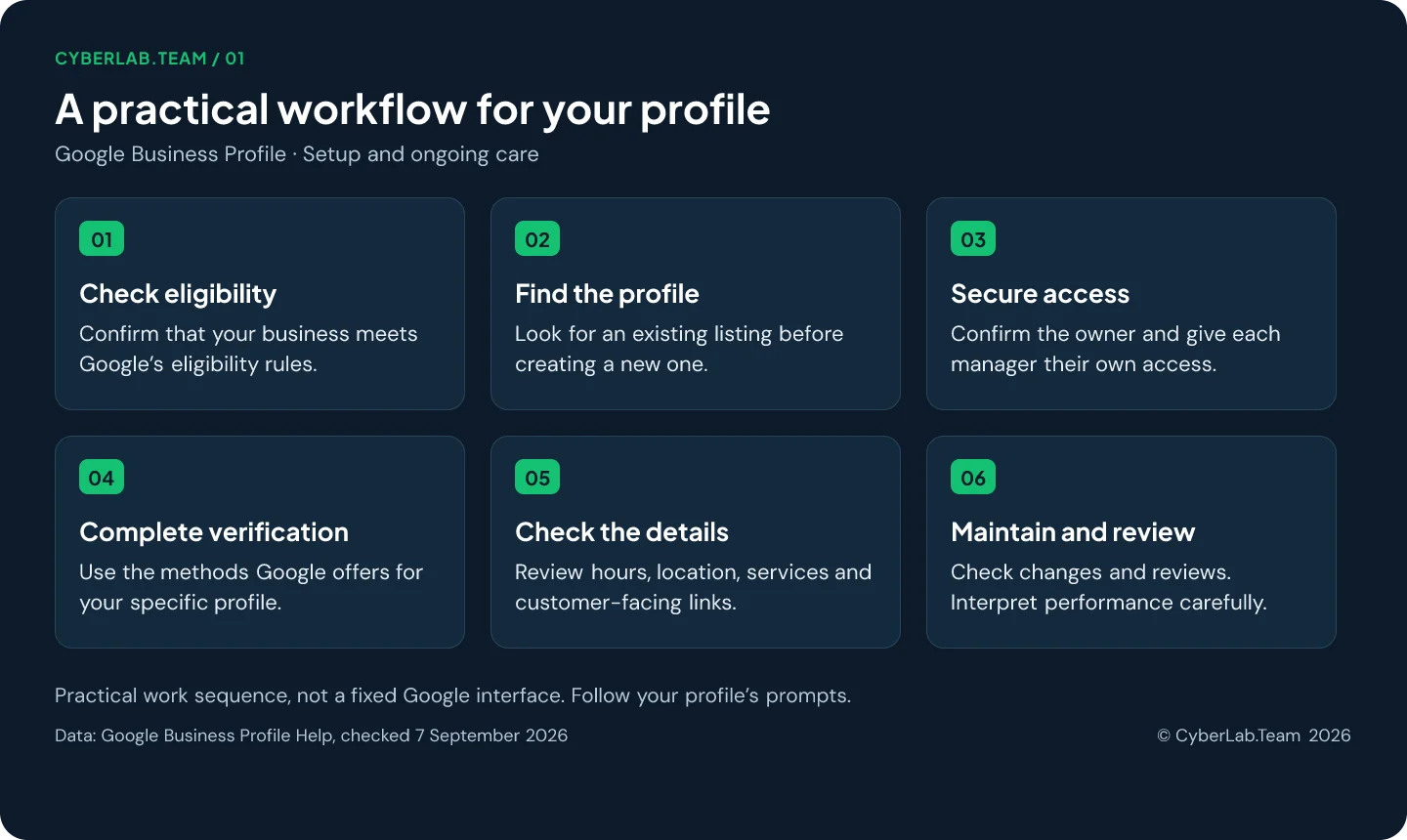
- Eligibility and creating the profile. Google’s rule of thumb is in-person contact: customers meet your staff at your premises, or you go to them. The steps, and the difference between a storefront and a service-area business, are in how to create a profile.
- Finding or claiming an existing listing. Most businesses that have been open for a while already have one, so search before you create. If someone else controls it, see claiming an existing business on Google Maps.
- Verification. Google, not you, decides which method is offered. The methods, the video rules and the waiting times are in how verification works.
- The fields customers rely on. Name, categories, address, hours, description, services, attributes, links and photos are checked one by one in the field-by-field checklist.
- Reviews. Asking, replying and handling the ones that break the rules are in the reviews guide, with the reporting mechanics in can you delete a Google review.
- Ranking and measurement. What Google says about relevance, distance and prominence, and how to test and read results, is in the Maps ranking guide; linking performance data to analytics is in the GA4 guide.
Who holds access, and who does what
A profile has one primary owner, and that should stay with the business. Everyone else who works on it uses their own Google Account with the role the work needs. Owners manage user access; managers can do most of the daily work, including edits and review replies, but cannot add or remove users or remove the profile. With the roles set properly, nobody needs a shared password.
Give a supplier exactly the role its work requires and write the arrangement down before the supplier starts: who is the primary owner, who maintains the profile, which role each person or agency holds. When the engagement ends, revisit access as part of the handover instead of discovering the gap on the day something goes wrong.
Note who is handling any open request with Google and keep Google’s emails in one place, so three people do not end up chasing the same access problem separately. If a former employee or an old agency still controls the listing, that is a recovery problem, described in the claiming guide.
What gets checked, and in what order
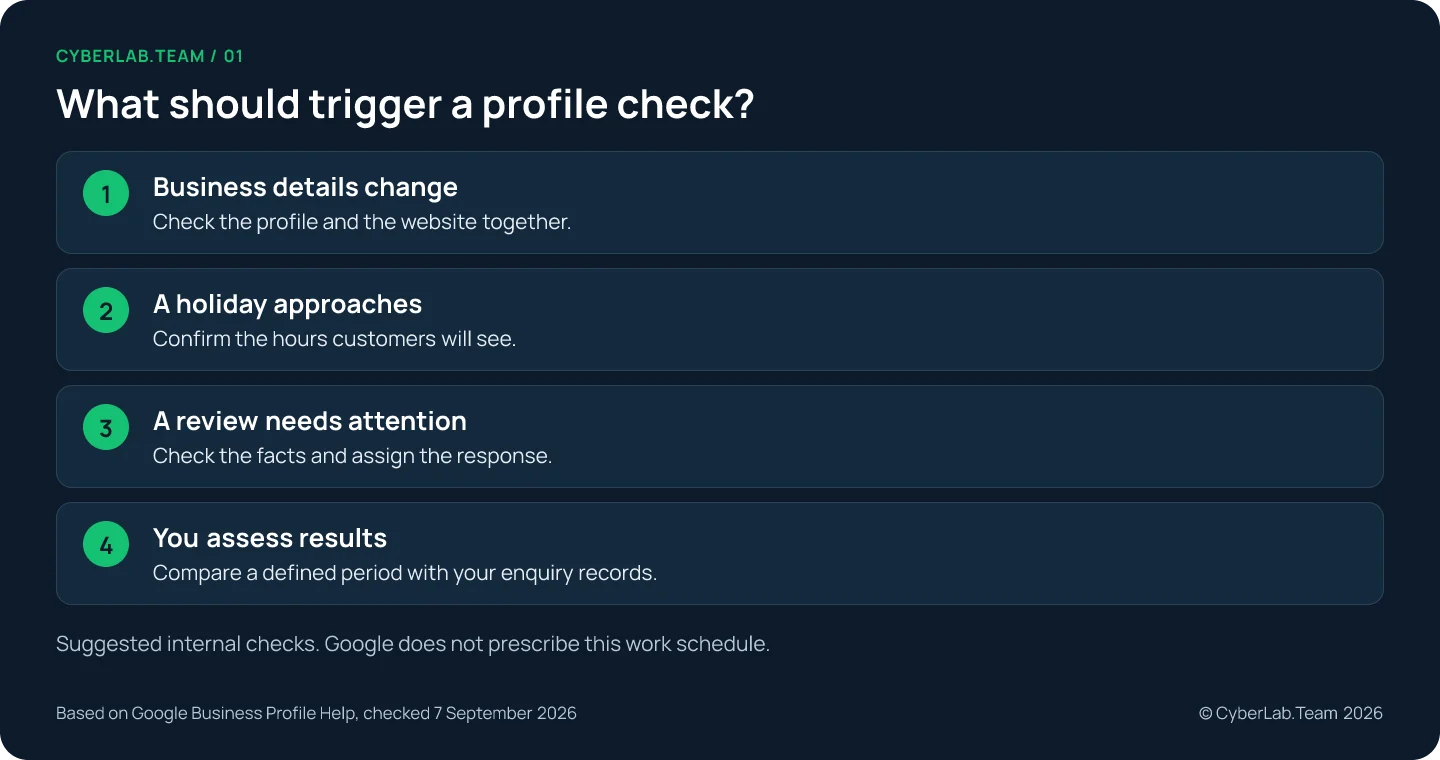
Choose a rhythm the team can keep. A weekly pass over what Google may have changed, what is time-sensitive and what customers have written, plus a monthly look at performance, is a reasonable start. Adjust it to the business, and run an extra check right after a move, a change of hours or a change of supplier. The intervals and the order are our suggestion, not a Google requirement and not a tested ranking formula.
| When | What is checked | Why it sits there |
|---|---|---|
| Weekly, first | Edit statuses and updates Google made on its own: pending or not approved edits, details changed from other sources | Everything after this assumes the public profile says what you think it says |
| Weekly, second | The next dated exception: holiday, closure or event. Compare special hours with the website and booking messages | A wrong date is seen by customers on that date |
| Weekly, third | New reviews: who replies, and whether anything looks like a policy violation | Replies are public, so they need a named owner |
| Weekly, fourth | Links and phone: open the website and booking links, call the number | A link that fails costs the customer's next step |
| Monthly | Performance for a defined period, set beside your own inquiry records, with a note of any change in advertising, hours or services; then update the handover record | Profile actions are clicks, not sales, so they need the context |
| After an event | The affected fields: a move, new hours, a new supplier, a change in services | The field pass is in the checklist |
Give one person the job of collecting upcoming exceptions from the business. A shared calendar is enough as a reminder. Before each exception, compare the intended hours with the public profile and the website, so a customer sees the same answer everywhere. The rules for special hours, including holiday hours, are in Step 3 of the checklist.
The monthly reading is about context: profile actions are clicks, not sales, and a change in advertising, hours or services belongs in the note. The ranking guide explains how to read those numbers beside your inquiries.
Posts: when there is something to say
Post when you have something a customer can use: a real event, a changed service, an offer they can actually redeem. Posts are the part of the profile that can go stale, so each one needs a date after which it stops being relevant. Nothing is guaranteed to go live automatically: a post can sit pending or be turned down.
Posts let you share updates, offers and events. Pick the format that fits, check the dates and the destination link, then confirm the publication status. Google warns that a phone number in the post text can get it rejected, and every post still has to meet its policies.
Keep a note of what went out and when it stops being relevant. A posting calendar exists to support that, not to chase a ranking effect nobody has proven, and daily posting is not a substitute for keeping the facts above correct. The photo side of the profile is part of the checklist, because photos are checked as a field, not scheduled like posts.
What counts as published
A submitted change is not a published change. Google marks edits as accepted, pending or not approved, and it also updates profile data on its own from user reports and licensed sources. The maintenance routine is therefore a check, not a form: what is public today, what changed since last time, and who owns the next fix.
After an edit, look at whether Google has actually published it. Check the status and the public result before calling a correction done. If Google asks for additional verification, go through it; repeating the edit will not resolve the underlying issue. A per-item log for this is the work-log template in the checklist.
Review Google’s own updates when they appear. Keep a record of the intended information, what changed and what you checked; not every Google update can be handled through the same controls.
If the profile is suspended or disabled, read the stated reason and fix the policy problem before you appeal. Prepare business documents whose details match the profile. Google’s appeal guidance says that once you open the evidence form you have 60 minutes to submit it, so prepare first and open the form second. Do not create a replacement profile while the appeal is being reviewed.
The handover record
Before handing the profile over, have the person who will maintain it walk through the public listing: open the website and booking links, check the next holiday, find the review controls and confirm who the primary owner is. Write down every unfinished item with a name and a next action. That walk-through is what turns a completed form into a profile someone can actually keep.
| The record holds | For example |
|---|---|
| Ownership | Who is the primary owner, who maintains the profile, which role each person or supplier holds and when that arrangement ends |
| Where Google writes | The address that receives Google's emails about the profile |
| Confirmed details | Name, address or service area, hours, phone number and website, each with the date it was last confirmed |
| Open items | What is still open, who owns it and what happens next |
| Last walk-through | Who opened the public listing, on what date, and what they found |
Any other authorized person should be able to pick up the work from that record alone. If they cannot, the record is missing something, and the gap is easier to fix on the day of the handover than on the day something goes wrong.
If nobody on the team will keep this routine, monthly profile management is the routine as a service. Send the profile link, say who holds access today and what has already been checked.
Sources
Google guidance last checked 7 September 2026.
- Google Business Profile Help. “Business eligibility and ownership guidelines.” https://support.google.com/business/answer/13763036
- Google Business Profile Help. “Manage Business Profile owners and managers.” https://support.google.com/business/answer/3403100
- Google Business Profile Help. “Set special hours.” https://support.google.com/business/answer/6303076
- Google Business Profile Help. “Create and manage posts on your Business Profile.” https://support.google.com/business/answer/7342169
- Google Business Profile Help. “Understand what happens to your Business Profile edits.” https://support.google.com/business/answer/3038311
- Google Business Profile Help. “Understand and manage your Business Profile updates.” https://support.google.com/business/answer/3480441
- Google Business Profile Help. “Fix suspended or disabled profiles.” https://support.google.com/business/answer/4569145
- Google Business Profile Help. “Understand your Business Profile performance.” https://support.google.com/business/answer/9918094